Your spotlight
Put yourself in the scene
Make a playful clip for your friends or a profile post. Start with a recent portrait that clearly shows your face, hair, and shoulders.
Use my photoBurning Bridges AI Video · by VividGen
One photo. You in the spotlight.
Upload one clear photo and step into the Burning Bridges party scene. No prompt to write. Preview the scene and a real example, then make your own downloadable 10-second, 720p MP4.
Loading scene settings…
Watch this fixed 10-second reference first. It provides the movements, outfit, scene, and camera framing for your result.
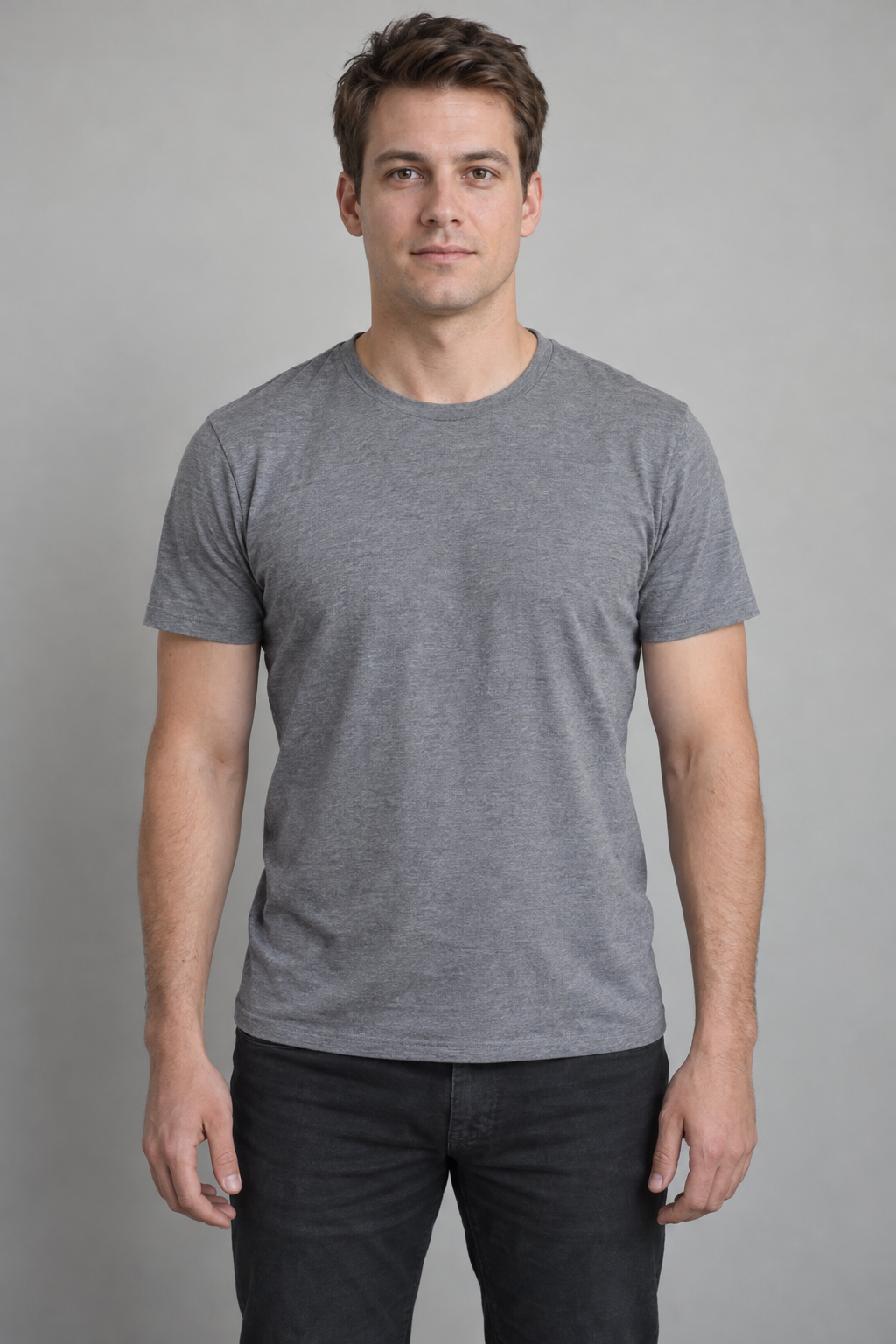
This clip was generated using a fictional, AI-created person’s photo and the fixed reference clip above. Your result may differ in likeness, facial details, and lip movement.
Return to this page to check progress and download your finished clip.
Sign in to see your videos and credit balance.
Choose a recent, front-facing photo of one person. Avoid sunglasses, covered faces, and group shots.
Check the template and credit cost. Add credits if needed, then confirm your generation.
Check your completed clip, then save the MP4. Your videos stay available in this page’s history.
Make it personal
The same single-person template can become a different kind of keepsake. Pick a photo that fits the moment.
Make a playful clip for your friends or a profile post. Start with a recent portrait that clearly shows your face, hair, and shoulders.
Use my photoUse your own cosplay portrait or an original fictional character you own as the face reference. The lead's outfit and movements come from the fixed clip; character resemblance can vary.
Try a character photoWith their permission, use a friend's solo photo to make a party-themed surprise. Download the clip and add your own message when you share it.
Make a personal surpriseBefore you upload
Your photo provides the lead's face reference. This fixed 10-second clip keeps the original outfit, movements, and scene, so your photo does not need to match the pose.
Watch the full generated clip before sharing. Facial details, hands, clothing, and mouth movement may vary.
Choose my photo